Kalix IDE
Interactions
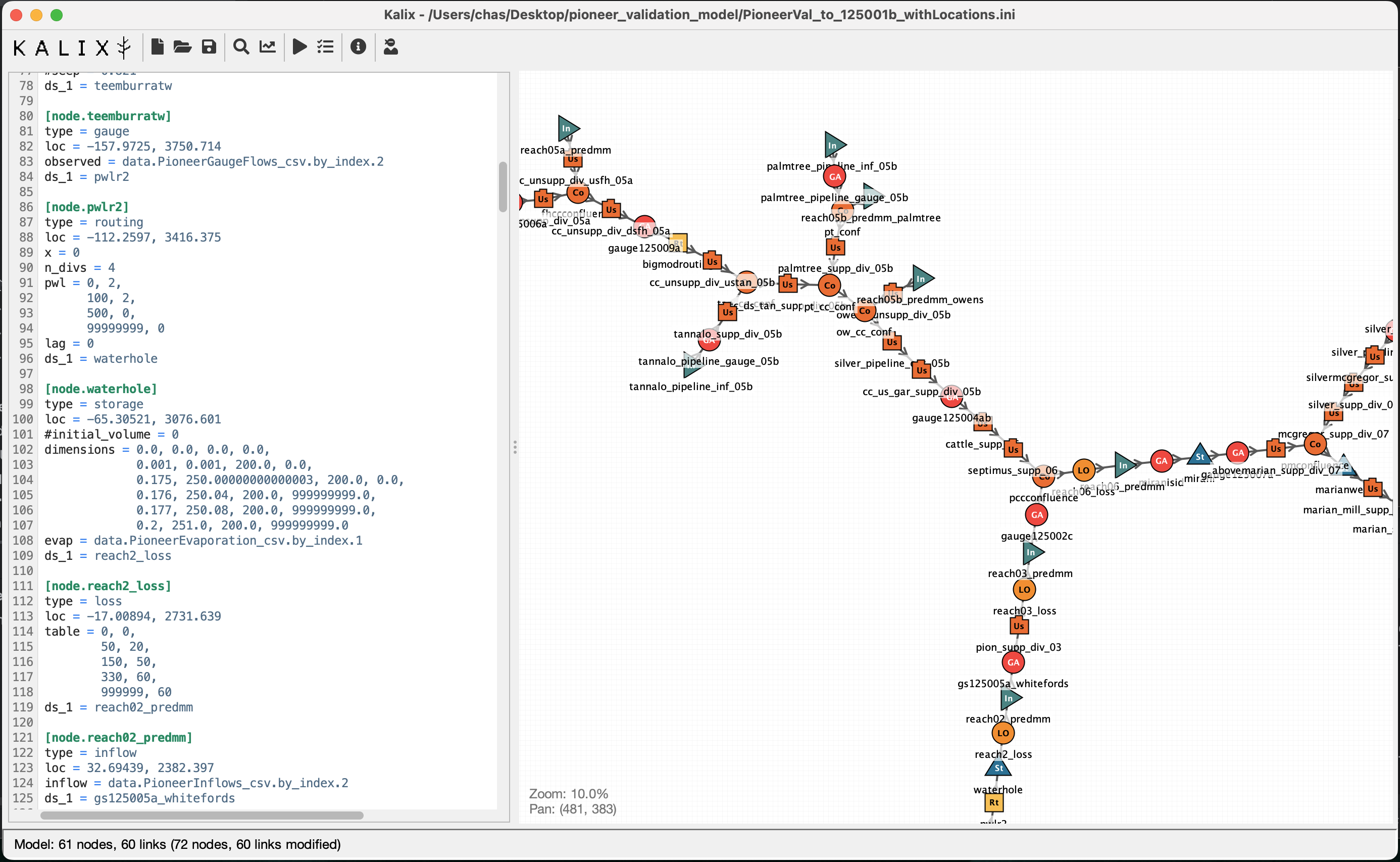
Rename node from the schematic map context menu
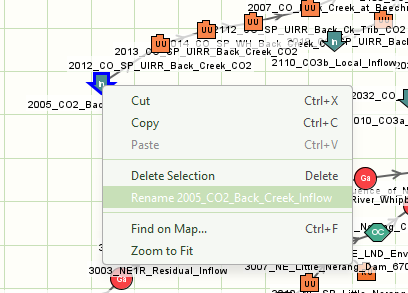
Model editor context menu item Show on Map will select and centre the node you’re working on in the schematic map
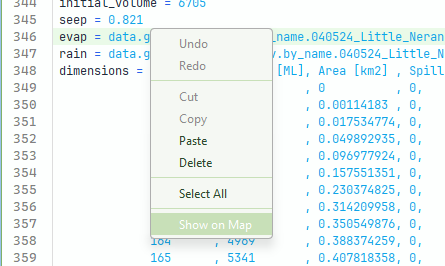
Click and drag to select nodes on the schematic map. Then drag to move or ctrl+drag to rotate.
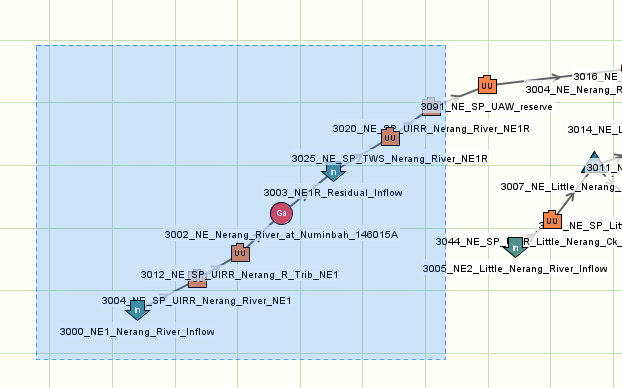
Select nodes in the schematic map context menu grows the selection from the nodes already selected. With no nodes selected, a selected link counts as the nodes at its two ends. Once a node is selected, selected links are ignored. Nodes are added to the selection, never removed; links are never added.
- All selects every node in the model.
- Upstream selects every node that flows to the selection.
- Downstream selects every node the selection flows to.
- Connected selects every node joined to the selection by any chain of links, in either direction.
- Connected downstream selects everything joined to the selection without passing through the river above it: the river below, its tributaries, and whatever leaves them.
- Connected upstream selects everything joined to the selection without passing through the river below it. In a braided network this adds the branches that leave the upstream reach, and whatever joins those branches.
With nothing selected, only All is shown.
Draw a link by hovering just outside a node until a ring appears, then dragging to the downstream node. The cursor shows when a drop isn't allowed (the same node, an existing link, or a loop). Esc cancels; Ctrl+Z undoes.
The link is written as ds_N = <downstream> at the first free outlet. If every outlet the node type allows is taken, the last one is re-pointed instead (ds_1 for most nodes, ds_2 for a splitter, ds_4 for storage). To use a different outlet, edit the ds_N numbers in the text.
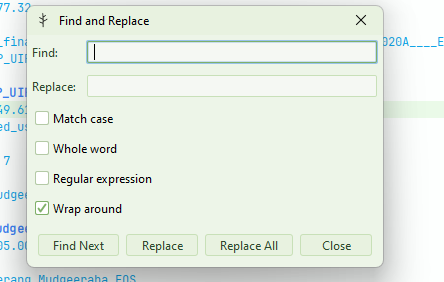
Ctrl+f in the model editor for find, or Ctrl+h for find-and-replace
Navigate Back and Navigate Forward allow you to move between locations you have visited in the model text. Keyboard shortcuts make this faster.
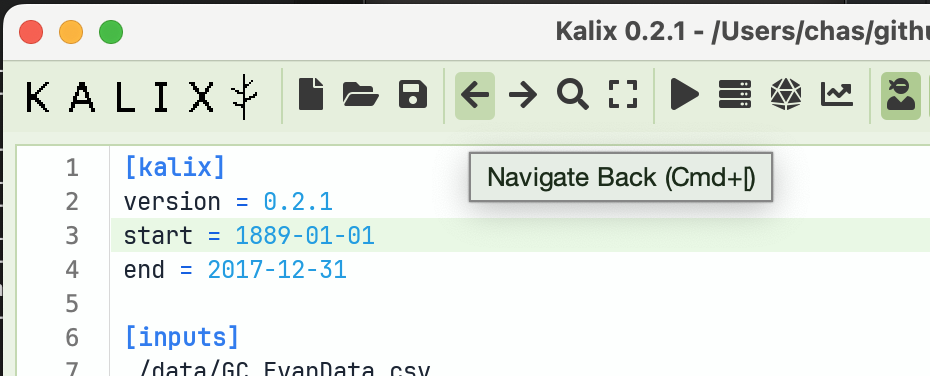
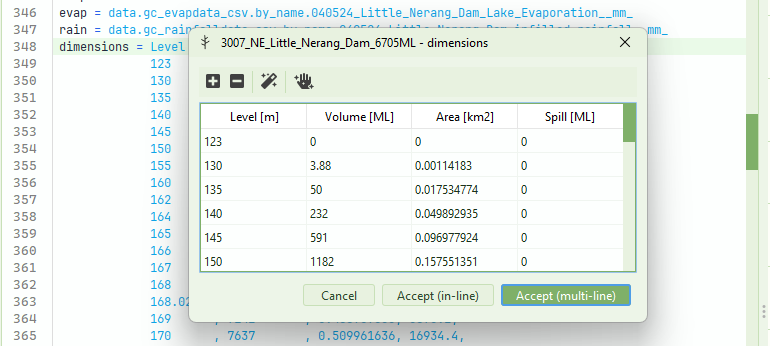
Table View for node parameters that accept tabular values. Find this in the editor’s context menu, or by using the shortcut Ctrl+t.
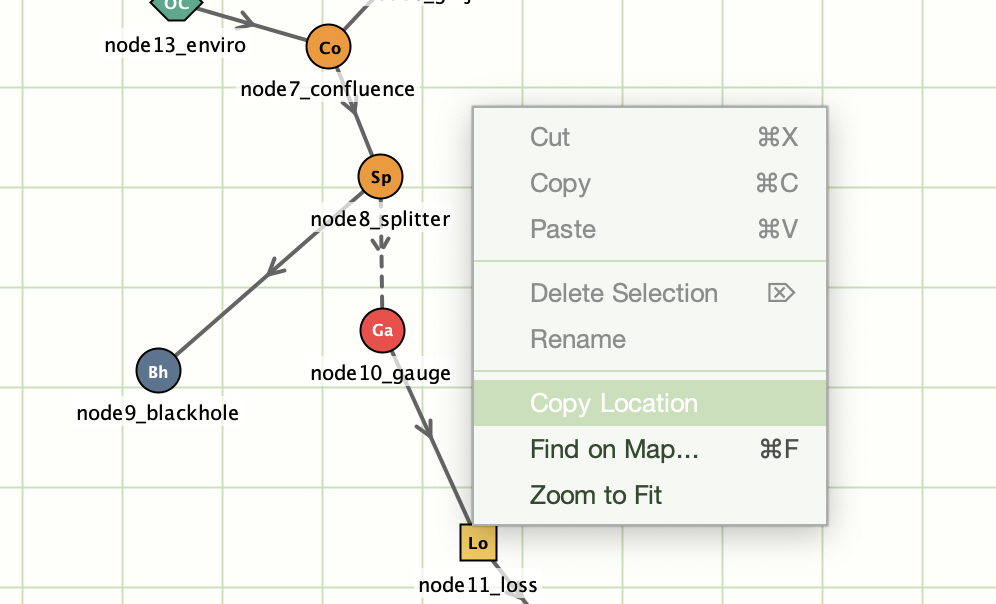
Copy Location by right-clicking your desired location on the map and using the context menu item.
Use the Navigate Back and Navigate Forward buttons to flick back and forth between locations you have visited in the model file.
Undo/redo in plots! Buttons in the Run Manager’s plotting toolbar allow you to undo and redo your plotting actions (data selection, zoom, plot type).
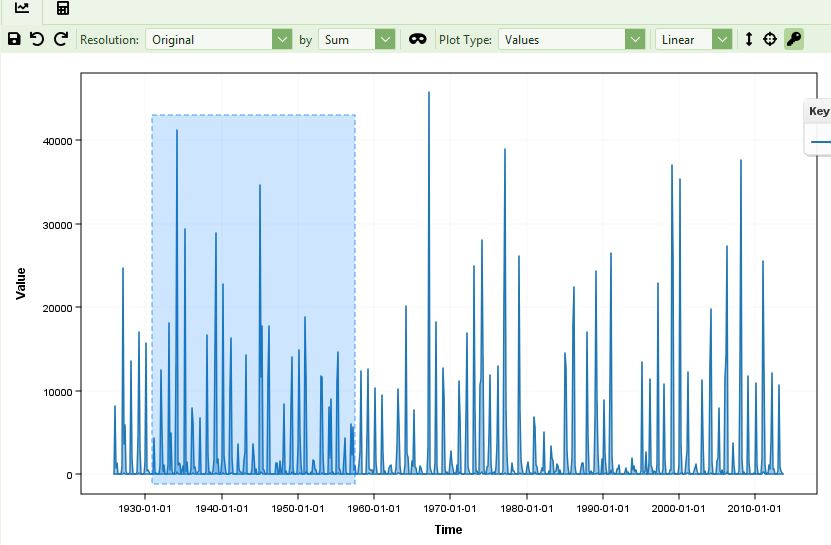
Shift + click + drag to zoom into a specific part of the plot using the mouse. This rectangular lasso zoom is handy for focusing in specific events in the hydrograph.
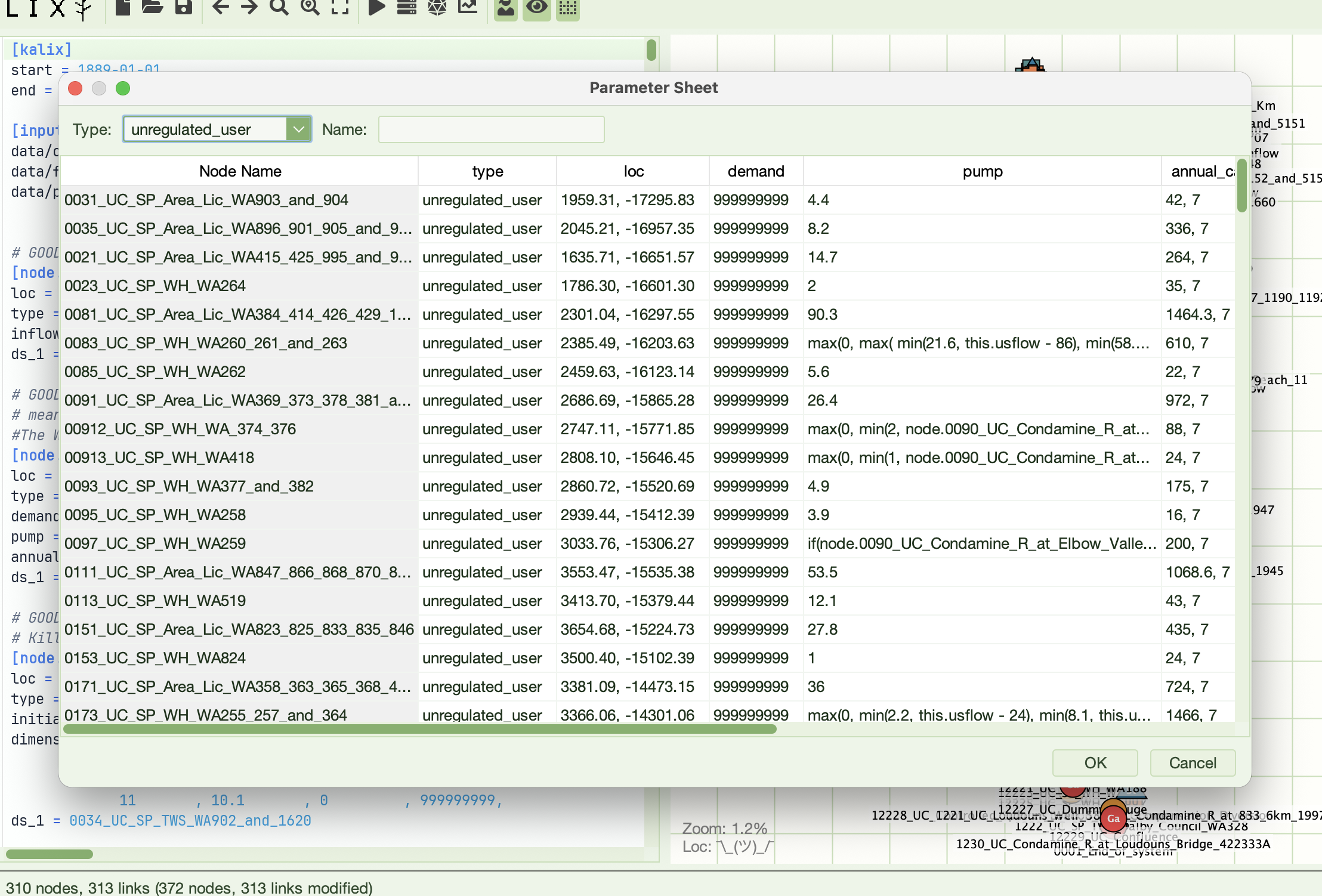
The Parameter Sheet shows node properties in a table. Filter by node type and name. Great for model review or bulk edits. Find it in the Tools menu.
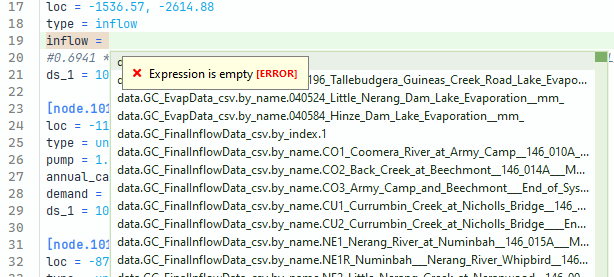
Auto-complete is accessible from the context menu, or the ctrl+space keyboard shortcut. Suggestions include data references and model result references. The list filters as you type and is context aware.
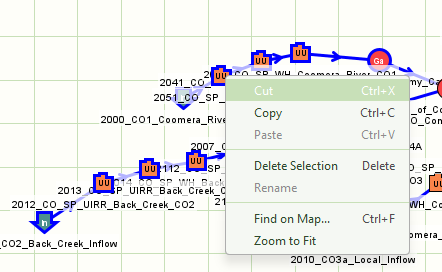
Cut/copy/paste nodes in the schematic map using the context menu or keyboard shortcuts. Paste will paste nodes onto the schematic at the coordinates where you opened the context menu. These will appear in the text-based model representation immediately below the section where the cursor currently is. (If you want to paste below a specific node, click on that node to place the cursor there before pasting).
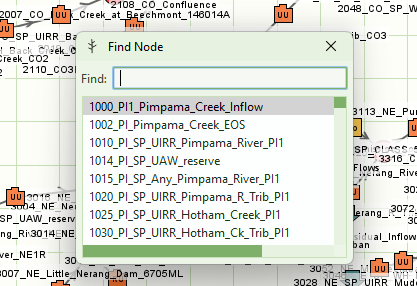
Ctrl+f to Find node on map. This is also available from a button in the toolbar.
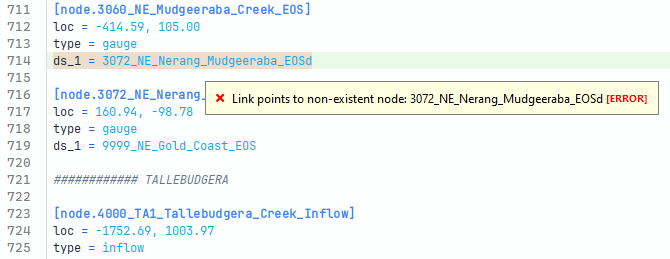
Linting warnings and errors highlight issues with the model file before runtime
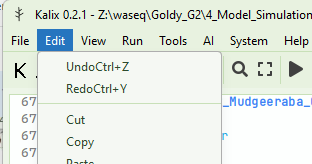
Undo and redo, right out of the box ;)
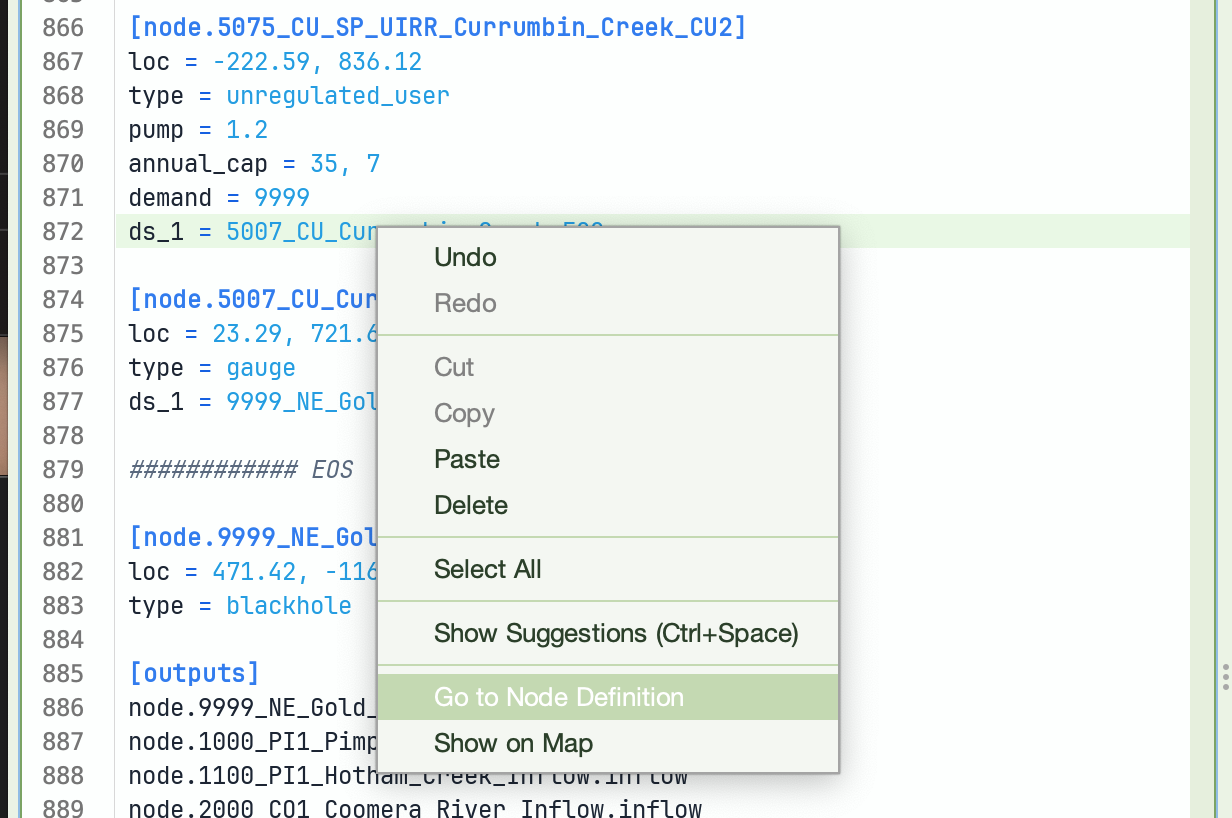
Right-click on a downstream link and use Go to Node Definition to navigate there with one click.
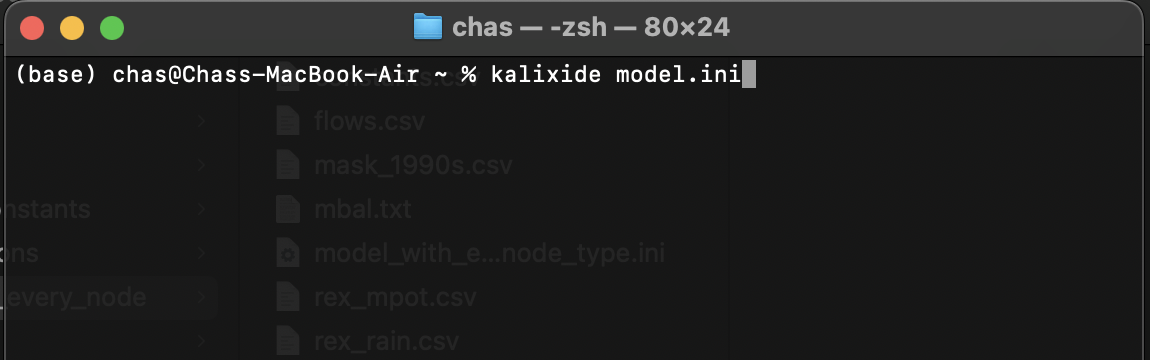
If you’re inside a terminal and want to edit a model, you can launch the IDE from the terminal and pass in the name of the model file.
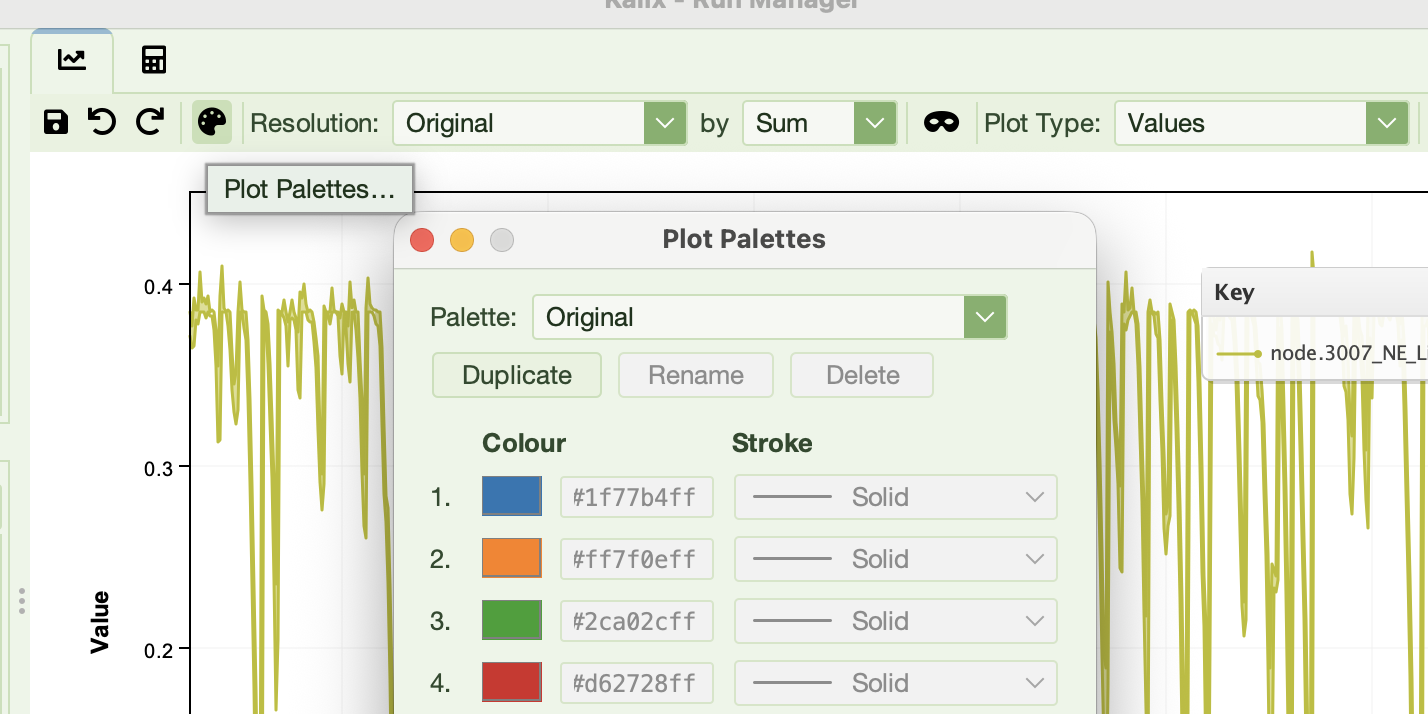
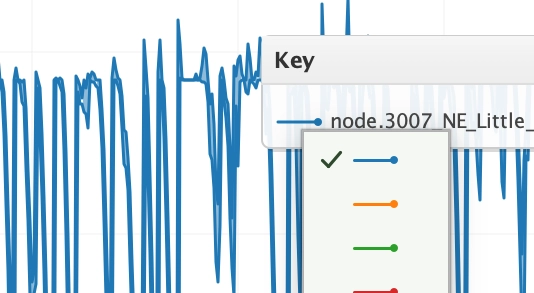
Look for the Plot Palettes button in the plotting tool create custom colour palettes. And click the line sample in the key to change the colour and style of a given line.
Themes
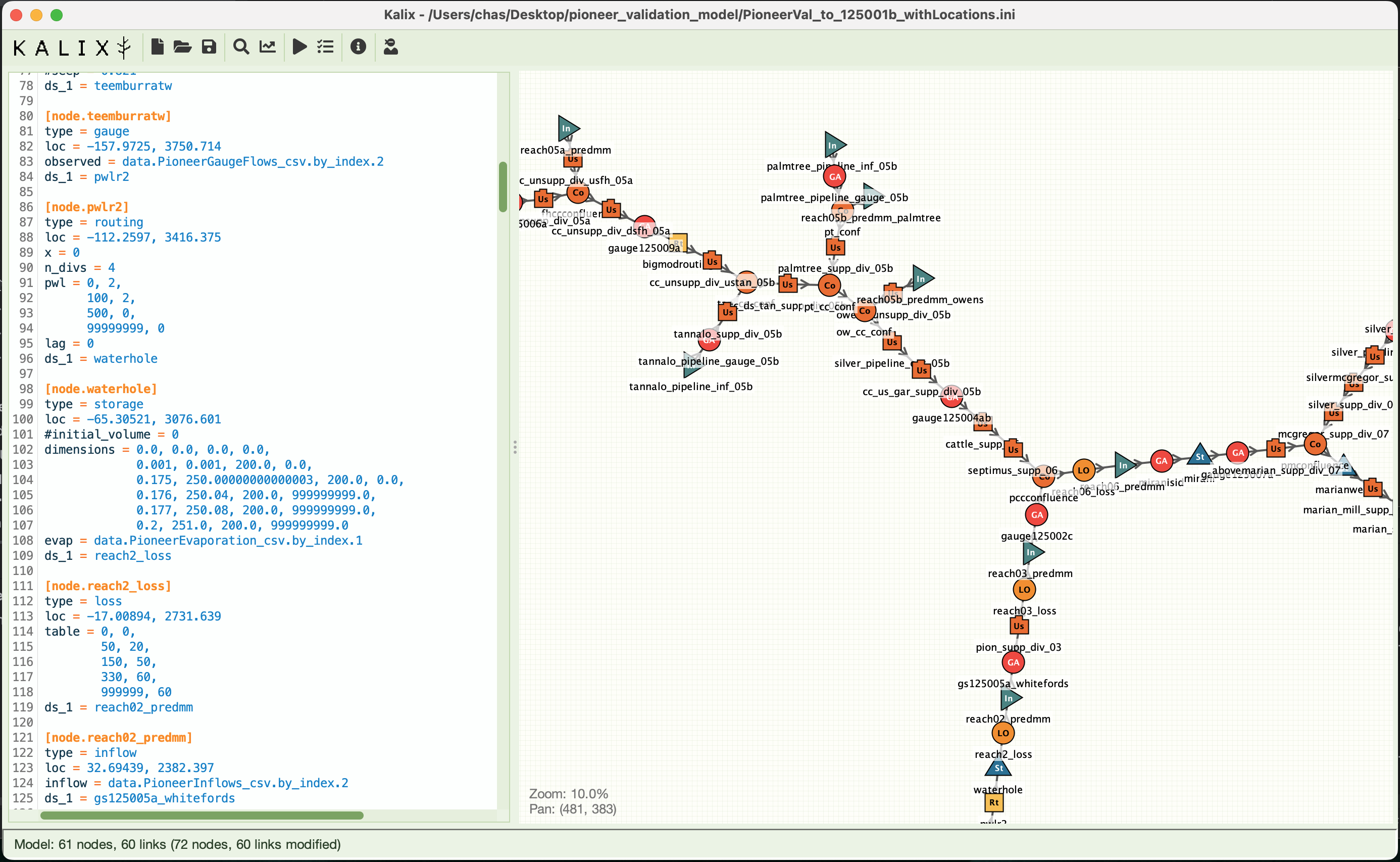
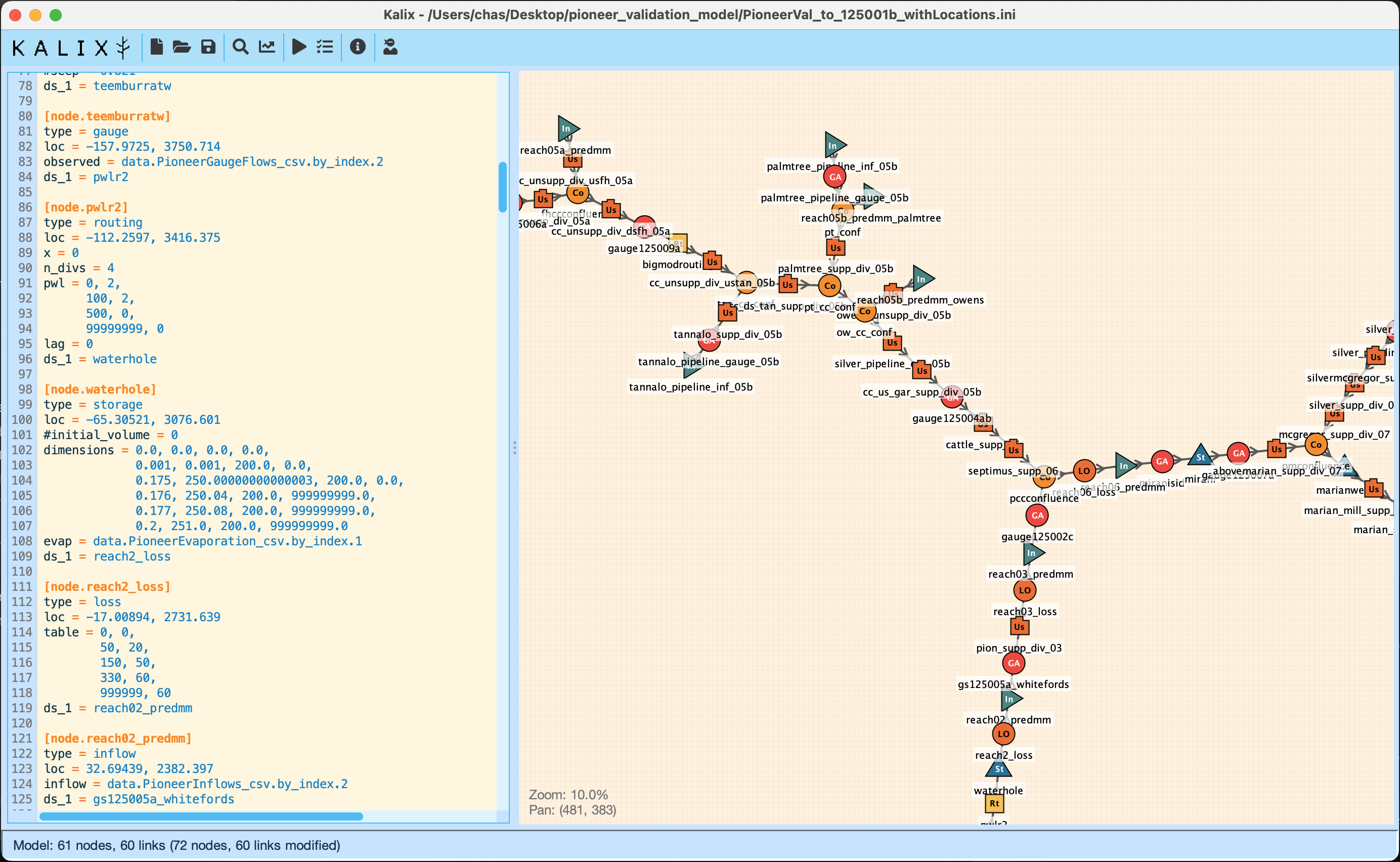
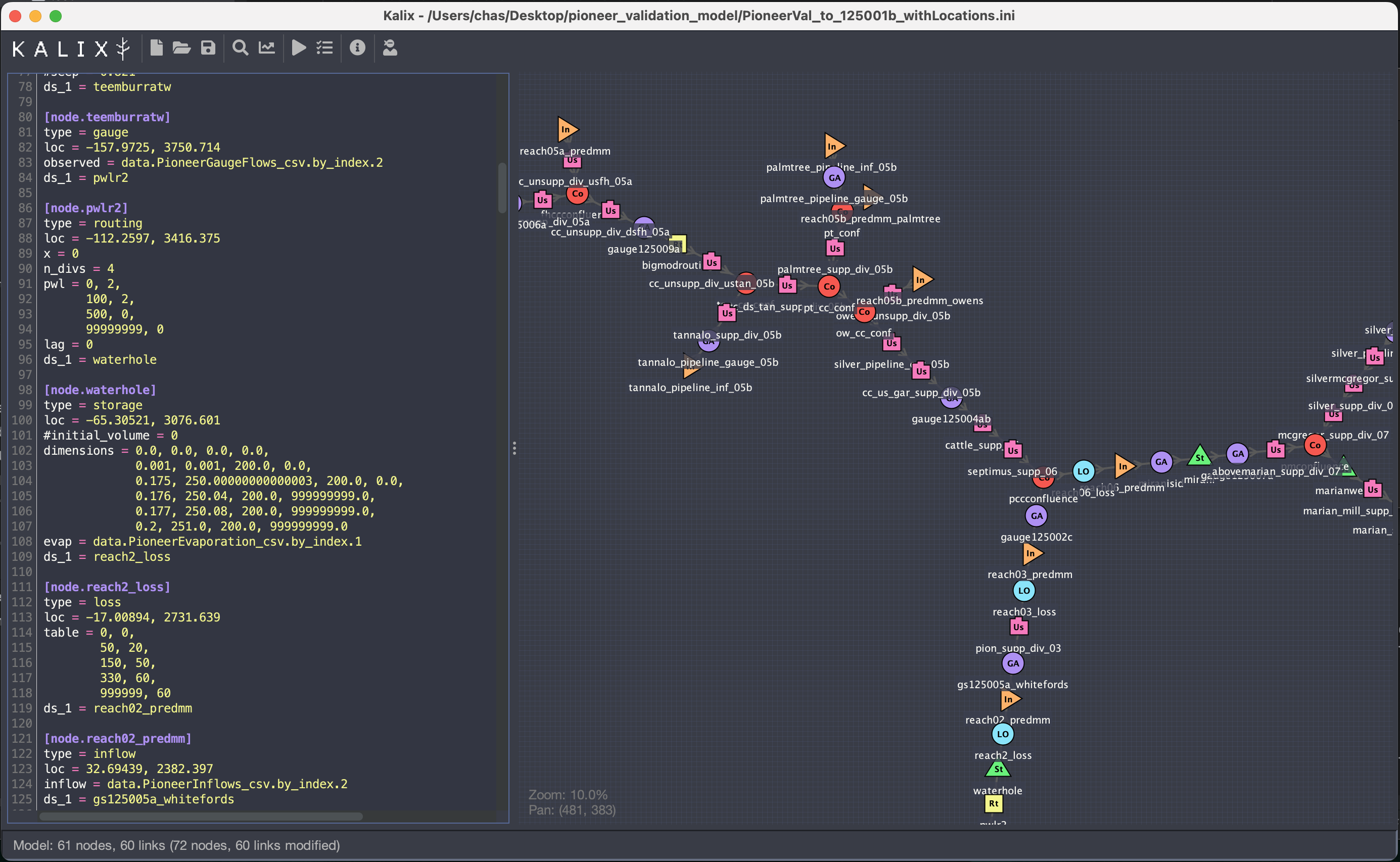
Themes can be independently set for the Editor Syntax, Node Palate and the Application Window.
Run Manager
It is a run manager. Yes.
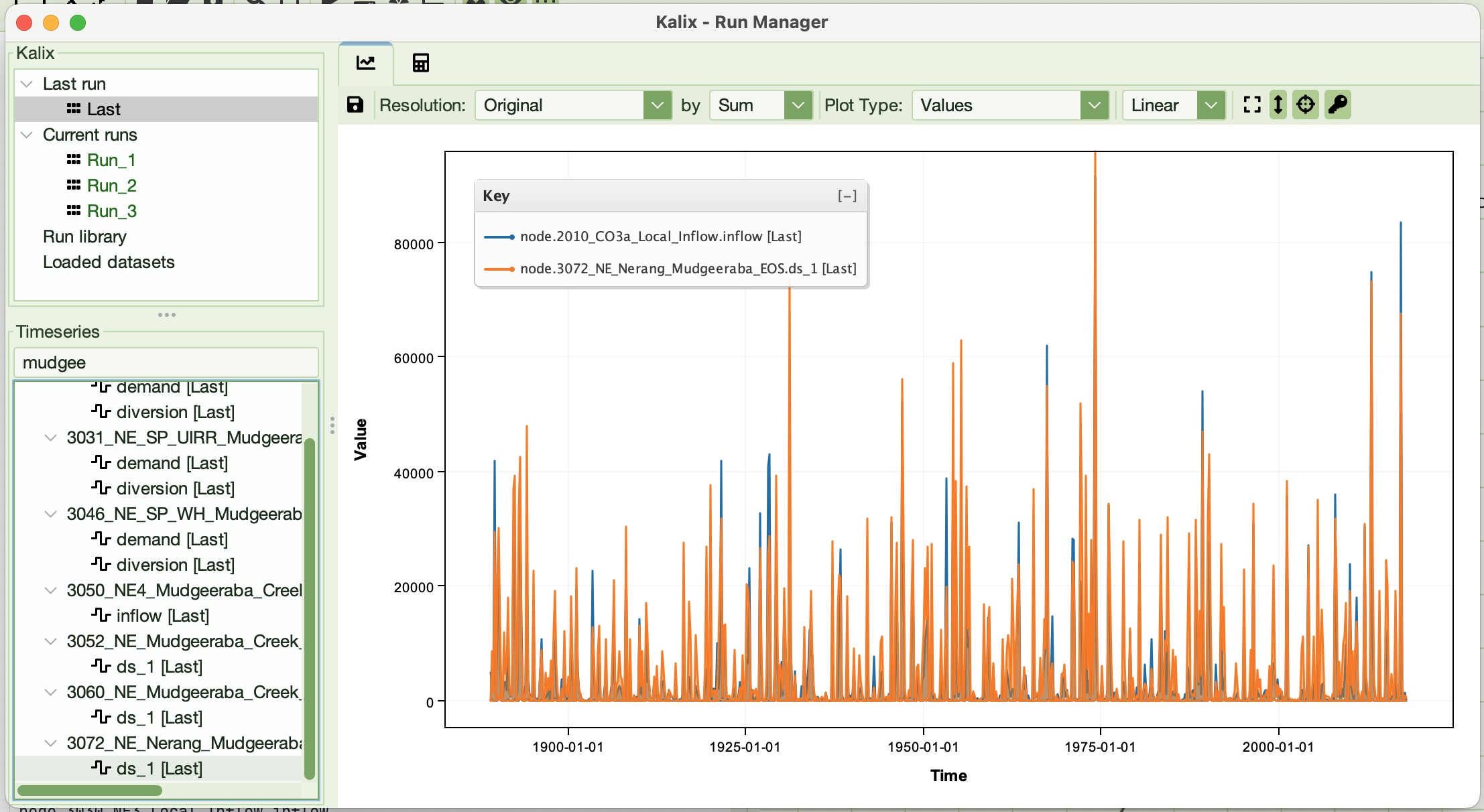
Filtering the Timeseries tree
Type in the box above the Timeseries tree to show only the series you want. Each series is matched on its full name (such as node.inflow_3.ds_1) and on its source (such as Run_2 or flows.csv). Case is ignored.
| You type | Shows |
|---|---|
inflow |
Every series whose name or source contains inflow. |
inflow_*.ds_1 |
ds_1 of every node named inflow_…. * matches anything, dots included; ? matches one character other than a dot. |
inflow *.ds_1 |
ds_1, and not ds_10, of every inflow node. Spaces separate terms, and a series shows only if it matches all of them. |
inflow !dummy |
Every inflow series except those with dummy in the name. ! excludes whatever a term matches. !dummy on its own shows everything else. |
"qu art" |
A name with a space in it: quotes keep it one term. Wildcards still work inside quotes. |
/inflow_[34]\.ds_1$/ |
A regular expression (regex), written between slashes. It may contain spaces; write \/ for a slash. |
Run_2 |
Series whose name or source contains Run_2, so the run Run_20 too. /^Run_2$/ picks Run_2 alone, and Run_2 inflow narrows to its inflow series. |
A term with * or ? must match whole parts of the name, between dots: inflow_*.ds_1 matches node.inflow_3.ds_1 but not node.inflow_3.ds_10. A term without them matches anywhere: ds_1 matches both.
If the filter doesn't make sense (a quote or regex left open, a ! with a space after it, or an unclosed bracket in a regex), the box turns red and its tooltip says why. The tree keeps the last filter that worked until you fix it. A filter that is fine but matches nothing shows "No series match the filter".
The filter only changes what the tree shows. Ticking a folder while filtering ticks just the series you can see, which makes it quick to plot every match. Series you ticked before filtering stay plotted even when the filter hides them.
Derived series
A derived series is the point-by-point sum of series from one source: a run, the Last run, or a loaded dataset. Use one to total the flows through several nodes, or the demands of a group of users.
Making one. In the Timeseries tree, either select the series to sum and right-click Sum selected…, or tick them and right-click Sum checked…. Then give it a name: letters, digits and underscores (a suggestion such as sum_1 is filled in). Both items are greyed until there are at least two series to sum. Ticking suits "all but a few": tick everything, then untick the ones to leave out.
- Selecting (or ticking) a folder such as
node.mygr4jsums every series under it, as the tree shows it. Use the filter to narrow what is summed, for example to everyds_1; only series the tree currently shows are summed. - When the selected series come from several sources (for example
Run_1andRun_2), Kalix makes one derived series per source, each summing that source's series, so totals can be compared across runs. Every source must include every selected series, so series from a run and from a loaded dataset can't be summed together. - A derived series can be an input to another derived series of the same source.
- The series must have identical timestamps. A point missing in any input is missing in the sum.
Derived series appear under Derived series in the Run Manager's source tree, grouped by source, and as derived.<name> in the Timeseries tree, where they plot like any other series. The new series is ticked and plotted for you; if the filter would have hidden it, the filter is cleared. Hover over a derived series in the source tree to see what it sums.
derived. is a Run Manager label, not a model namespace: a model expression can't refer to derived.sum_1. To have the model itself record a total, define it in a [var.*] block.
Derived series of Last run are recomputed whenever a new run completes, inputs before anything made from them. If the new run can't supply an input (a series is missing, say), the derived series is cleared and its row in the statistics view says why; it comes back when a later run can. If the run that is Last is removed, Last moves to the newest remaining run and its derived series follow.
A derived series lasts as long as its source. Removing a run or a dataset removes its derived series too, as it does the run's other series. To keep a total past its source, save it first. Derived series also last only for the session.
Managing derived series. Right-click a derived series in the source tree to Copy inputs (its inputs to the clipboard, one per line), or to Save…, Rename… or Delete it. Right-click a group to save or delete all of its derived series, or Derived series itself to delete every derived series. Derived series save as CSV, zipped CSV or Pixie, one column per derived series.
Error log
A message in the status bar is replaced by the next one, and an error dialog is gone once you close it. The IDE keeps every error it has shown you this session in an error log. Once there is one, an info icon appears at the left of the status bar, with the number of errors beside it; click it to open the log in a tab. Each error is one line with the time it was shown, and the tab fills in as more arrive. Select and copy from it like any other text.
The log is read-only and lasts only for the session: it is not saved anywhere, so copy out what you want to keep. Right-click the icon to Clear the log; the icon goes until the next error.
Docking
Fn+F9 reveals docking capabilities in the main window. Holding Fn+F9, look for the blue handles that appear in the top left of the schematic editor and text editors. This feature is in alpha. Good luck 😄.
KalixIDE Preferences
Preferences are automatically saved in the preference file, which lives in the ./app/kalix_prefs.json file relative to your KalixIDE executable. Some of these are configurable at File > Preferences, while others are simply settings remembered from your last session.